
DIGIT+: Digitalization for in groups integrative training
- international network for support, connection , innovation and know-how share
in digital vocational education
(Project code 2021 -1-RO01-KA220-VET-000032924)
IO3- DIGIT STEP 1
Basic skills training for use of digital learning instruments

Table of Contents
Unit 1. Understanding Digital Literacy Skills
1.1. What is ‘’digital
literacy’’?
1.2. What are digital
skills and why are they important?
1.3. What are
basic digital skills?……………..
1.4. Basics around using
technology: Understanding your hardware
1.4.2. Computer: The components
1.5.1. Connect to the Internet using
wireless broadband
1.5.2. Connect to the online
classroom
Unit 2. Start browsing
the web
2.3.What is
Information Literacy?.
Unit 3 Using word
processing software
3.2. Creating a Word
document on your PC
3.3. Reading tools in
a Word document
Unit 4. Performing
basic tasks on your computer
4.1. Uploading and
downloading
4.1.2. How to download a file from
the Web to your computer
4.1.3.How to stay safe from malware
while downloading
4.2.
How to upload a file on your computer
Unit 5.
Sending&receiving emails
5.2. Creating an email
account
5.3.Compose and send a
new message
5.4. Receive and reply
to a message
5.5. How to send
emails with an attachment
5.6. Email safety and
security
How to
stay safe from phishing attacks
Unit 6. Collaborating
through digital tools
6.1.What is
collaborative learning?
6.2.What are
collaboration skills?.
6.2.3. Emotional intelligence skills
6.4.Eliminating the
barriers to successful and inclusive collaboration
Unit 7. Stay safe and secure on the Internet
7.1. Why should you
use the Internet safely
7.2. How to keep your
password secure
7.3. Use the Internet
responsibly: Be aware of Your Digital Footprint
7.5. Are you a
Responsible Digital Citizen?
Foreword
Welcome
to the
Basic Skills Training for use of digital learning
instruments!
This
training course was
developed in relation to the implementation of the Erasmus+ KA2 Vocational Education Strategic Partnership
project ‘‘DIGIT+: Digitalization
for in groups integrative training - international network for support,
connection , innovation and know-how share in digital vocational education’’(Project code 2021 -1-RO01-KA220-VET-000032924).
Background to the course
The yet unfinished Covid-19 pandemic has changed education dramatically. Research shows that
millions of children, of all
ages, and in all countries, have been affected by the school closures and the ensuing socio-economic impacts, especially in the
poorer countries and low-income neighbourhoods.
Prior to the
development of this project, an
initial needs analysis was conducted among 562
teachers/trainers and learners from the
project
partners or associated schools about remote learning between 1.09 to 30/10/2020. It revealed the following issues mentioned by the students:
-
social learning with colleagues and team work was needed, digital communication
was difficult and they lacked adequate instruments for training (%86).
-
online learning was hard for them as it reduced their ability to access
education because they did not have adequate skills to use communication tools
effectively (%32).
-
the disadvantaged children did not have the necessary skills to work in
distance learning (%90).
Aim&the target group
The overall aim of the course is to train disadvantaged students facing economic, cultural, educational and social
barriers, e.g. those with migrant background, in basic digital skills in order to facilitate their
learning and integration.
The course contents
The
30-hour Training Curriculum is organised around 7 units& the e-learning platform.
The first
unit of
the curriculum is designed to provide a definition of ‘’digital
literacy’’, a basic understanding on basic digital skills, basic information about hardware
and the basics around
using technology.
The
second
unit presents
practical information about how to find data, information& content through
simple search on the Internet, practical tips and suggestions on how to check
the integrity of your source and detect the credibility&reliability of
common sources of online data&information.
The unit also looks into Information Literacy, including how to use the
Internet safely.
The
third
unit
is
designed to provide you with
basic information about how to use word processing software,
i.e how to create a new document,
the main tools that allow you to carry out many tasks , basic information about the reading
tools in a Word document, writing, modifying &formatting text using the
icons on the toolbars.
The fourth
unit aims
to equip learners with basic and practical information about how to perform
basic tasks on your computer , an understanding of using the Web responsibly
and of copyright and the implications of its violation, and the importance of staying safe while you
perform these tasks
The fifth
unit aims
to provide practical information about
creating an email account, composing emails, attaching documents or
files to them, receiving emails and dowloading attachments safely. This unit
also aims to provide advice about how to stay safe using email and some common
definitions concerning email security.
The sixth unit is
designed to provide you with an understanding of collaboration skills to work
successfully and efficiently in a team
which will help us learn
in an
inclusive classroom environment,
online and/or offline.
The seventh unit underlines the importance of using the Internet safely,
taking care of your digital footprint and how to control& reduce it.
Time
frame
Each
unit requires approximately 4 hours’ learning. It is important
to note that enough time should be added to do the self-tests at the end of
each unit
if the training occurs in classroom environment.
How
to use the Training Curriculum
Each unit begins with the purpose of that particular
unit. The course can be used either as a complete programme or students can
select single units to study according to their needs.
Trainers, who will use the course in classroom environment,
do not have to follow the curriculum word-for-word; in fact they are encouraged
to adapt it to their own situation. There is room for flexibility so that any
modifications can be determined by the local situations.
Evaluation
Training
evaluation is planned as self-assessment conducted at the conclusion of each unıt. In classroom setting
,the training can be fine-tuned through observation and learners’ feedback at
the end of the unit (real-time
formative evaluation).
On the completion of
the course, we hope that disadvantaged students will be adequately empowered to put the newly-learnt basic digital skills into every day
practice and and find it easier to integrate into online classroom.
Terms of use
The course was developed as Open Educational Resource (OER) and thus freely available for the
public. However, use of the material from this publication is for
non-commercial uses only and on condition that the source is properly quoted.
It is available in all partner languages to facilitate its wider use.

Introduction
Today digital literacy, i.e.knowing
how to write, read and communicate in the digital world, is considered as
a foundational skill alongside the
traditional literacy (reading, writing) and numeracy (arithmetic) skills. When people
combine them with the 21C leadership skills such as critical
thinking, collaboration, problem solving, communication and creativity, they
can benefit fully from participating in a dynamic and global knowledge
society.
Development of basic
digital skills and then progressing to gaining intermediate and advanced
digital skills is crucial and this enables us to access news and information,
communicate with friends and family and make everyday use of services related
to health, government, digital finance and so on. In addition, by upskilling
ourselves in key digital skills, we can reboot our prospects of employment in
today’s competitive jobs market, become more creative, productive and
successful; we can even set up our own business once we acquire more advanced digital skills!
One final note before starting this course is that everything changes very
quickly in the digital world. Devices, software and social media tools change continuously
which poses a challenge for those who design digital literacy skills training
programs. However, the basics remain the same more or less, so in this
training, we have generally included basic information rather than very
detailed and precise step-by-step guidance as they may have changed, too, by
the time you sit before your computer and start this course! However, there are
other means of training on digital skills you can use, for example, the
Internet is a vast source of information
and offers free training opportunities.
 Although you are invited to
study the whole curriculum to get the most out of it, you can always get back
to the units separately according to your needs!
Although you are invited to
study the whole curriculum to get the most out of it, you can always get back
to the units separately according to your needs!
Good
luck and we hope you both learn and enjoy your journey into the Basic Digital
Literacy Skills Training!
Unit 1. Understanding Digital Literacy Skills
Learning aims and objectives
This lesson is designed to
provide you with:
- a definition of ‘digital literacy’, an understanding of basic digital skills and what you can do with them and
information about hardware and the basics around using technology.
1.1. What is
‘’digital literacy’’?
Today, the majority of young people
are technologically savvy and know how to go about a tablet, an iPad, smartphones or laptops. However, are all of ICT users digitally literate? Are you? Digital literacy is not just IT proficiency – though knowing
how to use tech is an essential life skill-, it does not mean computer literacy
either, as it requires several more competences such as critical thinking, communication , cognitive and technical skills, an awareness of interacting with the wider world online in a
responsible and ethical manner and an understanding of ‘’good and responsible digital citizenship’’
which is crucial, as whatever we send out to the digital universe will stay
there permanently.
 1.2. What are digital skills and why are
they important?
1.2. What are digital skills and why are
they important?
Digital skills are
defined as ‘’a range of abilities to use digital
devices, communication applications, and networks to access and manage
information. They enable people to create and share digital content,
communicate and collaborate[1]’’. We
need them to use electronic and
online resources in a safe, responsible and effective way, to learn any where, any time and at our own pace, to
creatively and responsibly use them for accessing information, creating content, wellbeing and problem-solving.
Today, students at all levels are more interested in learning digital
skills as they use the Internet as a key source of information. If you are
equipped with digital skills, you know how to create content or consume it
responsibly and ethically, communicate with your friends and family and access
education&training resources.
Essential digital skills, no matter what level they
are, mean much more than simply reading online. While digitally
savvy students find, evaluate, create and communicate by using their cognitive
and technical skills, what
those who just read online are doing is hardly different from reading a print
book, you turn the pages over in a book and do the same online!
We need to practice – often a good deal of practice- to learn digital
skills and review and update them continually as new technologies and
innovations such as artificial intelligence, big
data,blockchain, Internet of Things and mobile applications have merged. The topic of this
course is, however, basic digital skills needed and used by students and
general audience.
1.3. What are Basic Digital skills?
Foundational or entry- level- digital skills are basic functional skills
which are used to make basic use of digital devices e.g. using a browser,
connecting to the Web- and online applications.
Basic Digital Skills

1.4. Basics
around using technology: Understanding your hardware
1.4.1.
What is your device?
There are
many digital devices to choose from these days. Firstly, think about what you
will use your device for. Secondly, ask yourself if you will use it in different places and
with other devices.
 Familiarize yourself
with your device. If you understand the
basics of your personal computer, laptop, iPad, tablet or smartphone, you will
be able to get the most out of it.
Familiarize yourself
with your device. If you understand the
basics of your personal computer, laptop, iPad, tablet or smartphone, you will
be able to get the most out of it.
The best way of
understanding how to use your device is to sit in front of it and start using
the touchscreen or mouse and the keyboard. Computers either have a display
screen – attached to it-
or a monitor which is
separate from the computer. Most computers also have an optical drive today
which enable users to read DVD sor CDs on their computers.
Common type of digital
devices

Features of the common Digital
Devices


1.4.2. Computer: The components
·
 Processor
The processor
(Central Processing Unit=CPU) is the part of a computer that performs operations on
the information that
is put into it’.[2]
It controls all the other parts of the computer. If your processor is fast –
measured in gigahertz (GHZ)- and you keep it updated , it will run, think and
work faster.
To put it into a single
sentence, CPU is the brain or heart of your
computer!
· Hard drive

Every computer has an internal hard
drive. A hard disc drive (also
known as a hard
drive or abbreviated as HD, or HDD) is what stores your
data and the programs you use on your
computer such as the operating system,
the software you have installed and the hard disc where your files and folders
are physically
located. A
typical hard drive is only slightly larger than your hand, however, it can hold
100 GB of data!
If you want to expand the
storage capacity of your computer, you can also use external external hard
drives such as USB memory sticks, flash drive and portable external hard
drives.
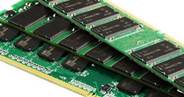 Memory is an important
component which stores data and information in
your hard drive. The data or information is either stored permanently or
temporarily.memory has two types: Primary memory (RAM-Random Access Memory)
which stores data and information temporarily. The stored data or instructions
are cleared once you turn your computer off. Secondary memory, on the other hand,
is where information is stored long-term , for example, on a USB memory stick.
Memory is an important
component which stores data and information in
your hard drive. The data or information is either stored permanently or
temporarily.memory has two types: Primary memory (RAM-Random Access Memory)
which stores data and information temporarily. The stored data or instructions
are cleared once you turn your computer off. Secondary memory, on the other hand,
is where information is stored long-term , for example, on a USB memory stick.
·
Output
devices
 The most widely known of
output devices are monitors, speakers and printers which allow computers to
send data to other devices or to other users. These output devices produce
video, audio and graphic output.
The most widely known of
output devices are monitors, speakers and printers which allow computers to
send data to other devices or to other users. These output devices produce
video, audio and graphic output.
v
Monitor/Display
Screen : The monitor is the
computer’s display screen. It is just as a TV and basically shows your activities
on the screen.
v  Printer : A printer is a
machine for printing text or pictures,
especially one linked to a computer.
There are many types to choose from, the most common being inkjet and laser printers.
Printer : A printer is a
machine for printing text or pictures,
especially one linked to a computer.
There are many types to choose from, the most common being inkjet and laser printers.
·
Input devices
We use input devices to give
commands to a computer and transfer data between computers. This is the basic
distinction between input and output devices. While output devices receive data
from the computer, an input device sends data to it.
The most commonly used input devices are the mouse-
touchpad in a laptop- and the keyboard, though
there are also other devices we use to put data into computers such as
microphone for inputting audio into their
computer, digital camera, scanner, joystick, touchscreen and touchpad. We will
take a brief look at the keyboard and mouse
below.
·
The keyboard
The layout of the keyboard is
similar to the typewriter and it is still the primary input device on a
computer. We use it to enter data or information which is usually
displayed on the display screen.
 A keyboard typically contains keys used to create individual letters, numbers
and symbols , as well as keys for additional
functions.Today,
the most common keyboard design is the QWERTY layout.
A keyboard typically contains keys used to create individual letters, numbers
and symbols , as well as keys for additional
functions.Today,
the most common keyboard design is the QWERTY layout.
In addition, special keyboards have also been designed for countries that use a non-Roman
alphabet, and also for disabled people.
Keyboards contain three types of keys:
Ø
Alphanumeric (Typing) keys: Alphabets,numbers, punctuation and special symbols like @, %,
#
Ø Special (Control) keys: These keys
are used alone or with other keys to perform certain actions. <Shift>, <Ctrl>,
<Alt>, <Home>, CTRL, ALT, ESC
Ø Function: These keys perform some specific tasks and give special commands;
<Fl>, <F2>, <F3> up to <F12>, are used to give special
commands depending upon the software used.
Ø Navigation (Cursor Movement): We use these keys to move the pointer (cursor) around on the
screen. They include the four Arrow keys, PageUp, PageDown, Home, DELETE and END keys.
·
Numeric keypad: Either on the far right side of the keyboard or a separate device that
connects to your computer, the numeric keypad is handy for inputting numbers quickly into a
computer.
·
 The Mouse
The mouse is an essential input device for entering
data and instructions into your computer using a pointer that appears on the
display screen. When you move the mouse, the pointer moves in a corresponding
direction on your display screen then you can move the cursor, open or execute
a program, select, (text, file) drag&drop, scroll up&down and hover.

USB (Universal Serial Bus) cable
A USB cable is used for connecting
your computer to devices such as cameras, camcorders, printers and scanners.
These days, however, it is possible to connect some devices to the computer wirelessly.
Digital camera
 A digital
camera takes photographs and stores the image as data in
electronic memory instead of film. Digital
cameras can hold thousands of photos, and they are also capable of recording
videos. You can send the pictures on a digital camera to your computer by using
a USB cable.
A digital
camera takes photographs and stores the image as data in
electronic memory instead of film. Digital
cameras can hold thousands of photos, and they are also capable of recording
videos. You can send the pictures on a digital camera to your computer by using
a USB cable.

Memory card
A memory
card is an electronic data storage medium used for
storing digital information such as videos,
pictures, audio and other types of file format
Webcam
 A webcam is
a digital video device either built
into the display with laptop computers or it connects to the
computer with USB. Its main function is to transmit
pictures or motion video over the Internet in
real-time. It is popularly used with instant messaging
services and for recording images.
A webcam is
a digital video device either built
into the display with laptop computers or it connects to the
computer with USB. Its main function is to transmit
pictures or motion video over the Internet in
real-time. It is popularly used with instant messaging
services and for recording images.
1.5. Start your computer

 Step 1
Locate the power button
Step 1
Locate the power button
Locate and press the power button on your computer:
- On a tower PC (monitor connected to a
boxlike device), the button is most likely to be on the boxlike device
(tower).
- On a laptop computer, the power button is likely
to be found above the keyboard,
usually on one of the top corners. Check
also the far-left or far-right on
the top row of keys on the keyboard.
Step 2 Power on your computer


 Once you have located your
device’s power button, press it. It will now boot into your selected operating
system, for example Microsoft Windows, MacOS or Linux . These
are the most common operating systems in the world. The operating system is the soul of your
device.
Once you have located your
device’s power button, press it. It will now boot into your selected operating
system, for example Microsoft Windows, MacOS or Linux . These
are the most common operating systems in the world. The operating system is the soul of your
device.
The time for the
operating system to load depends on the speed of your device. If the operating
system fails to load, there will be several recovery options you can use to
choose from.
 Step 3 Login to
your operating system
Step 3 Login to
your operating system
o
If you have a password on
your computer or device you will need to enter it, otherwise, your computer
will boot into its desktop. You can now start using your computer to do
whatever you like.
o  Familiarize yourself with each of the icons you
see on the screen by clicking on them.
Familiarize yourself with each of the icons you
see on the screen by clicking on them.
o
Navigate through the different areas of your computer. Take a look
at "Programs" first as it
is where everything you can do on your computer rests. When you
open programs and click on "Help" from inside
the program, you will access more information about what the program
is used for.
1.5.1.
Connect to the Internet using wireless broadband
Connecting to the Internet is a
simple but important task to learn. While it is possible to connect to the
Internet in various ways such as using Wi-Fi, ethernet, or the slowly
fading dial-up, we will focus
here on connecting by using Wi-Fi .
Steps
 1. Ensure that your modem is on and everything
is plugged in properly.
1. Ensure that your modem is on and everything
is plugged in properly.


 2. Tap on the Settings button on your Home screen and tap on
‘Wi-Fi’’ . Your computer will automatically
search for available wifi networks. Tap on the name of the wifi
network you wish to use.
2. Tap on the Settings button on your Home screen and tap on
‘Wi-Fi’’ . Your computer will automatically
search for available wifi networks. Tap on the name of the wifi
network you wish to use.
3. If
you see a padlock beside
the network name, this means that a password is required first. Enter the
password and then tap ‘join'. When a blue tick appears, you are successfully connected to a network!
 5. Once you are connected on wifi, the wifi symbol should appear on the top left or
right hand of your home screen. The number of highlighted bars indicates the
strength of the Internet.
5. Once you are connected on wifi, the wifi symbol should appear on the top left or
right hand of your home screen. The number of highlighted bars indicates the
strength of the Internet.
|
- using an ethernet cable if your computer is older. - moving closer to the source. -rebooting your router. |


Remember that while most mobile
devices such as smartphones, mobile tablets and iPads, can usually connect to
wireless broadband due to their portable nature, Ethernet and dial-up
connections are limited to computers.
1.5.2.
Connect to the online classroom

 Let’s take a look now at
how you can join online classes designed by your teacher.
The following instructions for joining in
online classroom will depend on your learning setting:
Let’s take a look now at
how you can join online classes designed by your teacher.
The following instructions for joining in
online classroom will depend on your learning setting:
If it
is your first time on the e-learning platform, you need to register for courses
by creating an account with a username/email and password.
 Enter your username and password to
sign in on your school’s online education system. Once you join, you will be able to access the
courses, get work from your teacher and collaborate with your classmates.
Enter your username and password to
sign in on your school’s online education system. Once you join, you will be able to access the
courses, get work from your teacher and collaborate with your classmates.
1.6. QUIZ
1.
Which of the following
gives instructions to our computer about what to do and how to do it?
a)
Software b) Hardware c) Printer d) Monitor
2.
The ‘brain’ and life of
the computer is:
a)
RAM b) ROM c) Central Processing Unıt
(CPU) d) HARD DISC
3.
What are some common input devices for a
computer?
a)
Keyboard, mouse and image scanner b) Keyboard, mouse and printer
c)
Monitor, printer, and microphone d) Keyboard, microphone, video camera, and
printer
4.
What types of keys can you find on a typical
keyboard?
a)
Typing keys b) Function keys c) Control keys d) All of a,b,c
5. Where does your computer store
information?
a) Printer b) Mouse c) Hard drive d) Keyboard
 Unit 2. Start
browsing the web
Unit 2. Start
browsing the web
Learning aims and objectives
This chapter is designed to
provide you with:
-
practical information about how to find data, information& content through
simple search on the Web and tips and suggestions
on how to check the integrity of your source on the Web and detect the
credibility and reliability of common sources of data&information,
- an understanding of
Information Literacy including how to use the Internet safely.
2.1. Browsing the Internet
You can use
your digital device to surf the Internet which is a vast network that connects
computers all over the world by cables, telephone lines and satellites. Through
the Internet, you can access the World Wide Web(www), view many websites
for entertainment or information, share information,buy&sell and
communicate with others anywhere on the earth with
an Internet connection.
Although the way you open your web browser depends on the device you are
using, the basics are similar. For
exploring the Internet (often referred as the Net), you can choose one of the
most commonly used search engines: Yahoo, Microsoft Bing, Mozilla Firefox,
Safari and Google Chrome. Follow the tips below while searching through the
Internet:
|
|
|
For searching , make sure that you know what you are
looking for! Ask the right
questions, think carefully about your key search words! |
|
Make sure that your browser is always updated |
|
Do not click on ads or offers |
|
Be careful before you download software and extensions |
|
Ensure that your antivirus system and firewall is
up-to-date |
|
Clear your browser cache regularly & delete unwanted cookies to
prevent ads following you on the web |
|
Log out of websites after you are done even if they are
secure!Just closing your browser does not automatically log you out of your
account, so it can still be open to hacking. |


2.2.What is URL?
 The URL is the shortened form of Uniform Resource Locator
which is the unique address of every website. It's easy to type a web address
and go to a specific site.
The URL is the shortened form of Uniform Resource Locator
which is the unique address of every website. It's easy to type a web address
and go to a specific site.
- If you already
know the website address you want to access you can go to it by typing it into
the Address Bar.
- First find the long, white Address Bar
at the top of the page, then type your web address into that bar. You’ll find
the Address Bar near the top of your screen when you are using a browser.
- Hit Enter button on your device
to go directly to the website. Make sure that you got the address right!


 - Hyperlinks: Hyperlinks
are one of the main tools while doing research on the web. You can also move around
on the Net by following the hyperlinks (also called links) which will
automatically navigate to a specific webpage,image, file or to other parts of
the web page you have been viewing. While your cursor appears like an arrow , it will
change into a pointing finger when you point it to a hyperlink.
- Hyperlinks: Hyperlinks
are one of the main tools while doing research on the web. You can also move around
on the Net by following the hyperlinks (also called links) which will
automatically navigate to a specific webpage,image, file or to other parts of
the web page you have been viewing. While your cursor appears like an arrow , it will
change into a pointing finger when you point it to a hyperlink.
 -
If you do not know the full web address , you can simply type the information into at the Search Bar
on a search engine such as Google or Bing. The Search Bar is usually marked by a search
engine logo (Google, Bing, etc.) and sometimes a magnifying glass icon. You will be able to find
the information you need as well as other websites offering relevant
information.
-
If you do not know the full web address , you can simply type the information into at the Search Bar
on a search engine such as Google or Bing. The Search Bar is usually marked by a search
engine logo (Google, Bing, etc.) and sometimes a magnifying glass icon. You will be able to find
the information you need as well as other websites offering relevant
information.

|
·
Website addresses do not contain any spaces, and the
different parts are usually separated by full
stops and forward slashes (/) ·
Clear your cookies and browsing history so you can
stay private online. ·
Be aware of what you search for on the internet,
your search keywords can be used to collect information about you! |
2.3.What is Information Literacy?
Information literacy is locating information from the Internet and evaluating its validity and accuracy before we
can share it. It is one of the most
important 21st Century skills we need to learn in the face of huge information
transmission we are exposed to today. We rely on the Internet as a primary source of information for both school and personal use. That is why it is
important to evaluate web content to identify what is useful , trustworthy and correct. Media and
technology can be used to distort and exaggerate information. So, we need to handle digital tools carefully
in order to avoid fake news, social media disinformation , manipulation and
misinformation.
 How to keep yourself safe from mis- and
disinformation
How to keep yourself safe from mis- and
disinformation

The below tips can help
you decide whether an Internet source is trustworthy:
Þ
Avoid anonymous authors. Whether you are reading
an article or blog, look for the author’s name listed on it. A further step is
to verify the reliability of the author by searching his/her name on the
Internet. When in doubt about the author’s credibility or objectivity, steer
clear of him/her.
Þ
Make sure that there is date on the article or
blog. It shows the article/blog is current and the content is
relevant. Otherwise the content may be obsolete.While this may not matter in
some cases, in certain types of study, the important data may be irrelevant by
the time you read it.
Þ
Check the domain name. They are also important
to show whether the article/blog is
credible For example, .com, .edu,.gov and .org are the most
credible domain endings for websites.
Þ Consider the website’s look. If it looks poorly designed and amateurish
and the writing is sloopy and grammatically
incorrect, stay away. However, this does not necessarily mean that all websites
which look amateurish are not reliable. The reverse is true, too,
well-designed websites do not always mean that they are trustworthy.
2.4.QUIZ
1.
What is the best description of the Internet?
a) The Internet is the network of all online&offline computers in the world.
b) The Internet is a global network of
interlinked online computers.
c) The Internet is a vast source of accurate
information.
d) The Internet is a computer operating system.
2. We do not use search engines
to:
a) Find entertainment b) Find relevant information among
millions of websites
c) Sort out our folders on our computer d) Look for information
3. Which of the following is not an example
of an extension in a URL?
a).edu b).com c) .gov d).rom
4. Why should you evaluate the information we find on the Web?
a) It could be incorrect b) It could be
discriminative c) It could be
outdated
d) All of the above statements
5. How do you not evaluate information on a web
page?
a) You trust your instincts
b) You check if the author is included
on the page and if she/he is credible
c) You check if the information is
current and accurate
d) You check if the author or the
web page is objective
Unit 3 Using word processing software
 Learning aims and objectives
This chapter is designed to provide you with:
-
basic information about word processing, i.e how to create a new document, the
main Word toolbars with icons that allow you to carry out many tasks and the
ruler, basic information about the reading tools in a Word document, writing,
modifying &formatting text using the icons on the toolbars.
3.1. What is word processing?
Word processing is an essential
and extensive computer skill which students need to master. In simple terms, it
is the composition, editing, and formatting
of text. You can create and edit documents using a word processor
such as Microsoft Word, Google Docs and Apple’s Pages. In addition, you can
insert pictures, school assignments, edit photos, draw objects, create reports,
letters, posters, etc.
Word processing
basics include: Opening and closing a document, creating
and formatting text (font, style, size and colour), adjusting
line spacing, cutting, copying and pasting a
selection, moving and rotating objects, inserting a page border,
spell check,
modifying the text wrap of an object, inserting clipart and so on.
3.2. Creating a Word document on your PC
 If you have Word on
your Mac, PC, or mobile device you can create new documents or use a
template.
If you have Word on
your Mac, PC, or mobile device you can create new documents or use a
template.
1.
Click on the ‘’Start’’ button on your computer and
go to the Programs. Find Microsoft Word and click on it.
2.
Choose ‘’New’’ or ‘’Blank Page’’ to work on. You can also click New on the File tab. At the top of the screen,
you will see the Title Bar on which the name of your current document will appear, for example , Document 1.
 The Menu Bar
The ‘’Menu Bar’’ which begins with ‘’File’’ and continues with Edit, View, Insert,
Format, Tools, Table, Window, and Help , is used to give
instructions to the software. Point the arrow to the menu item you want to
open, and click the left mouse button in
order to see the menu options in the
drop-down menus.
Toolbars
Toolbars are generally located just below the Menu Bar and
they provide shortcuts to menu commands.You should display the toolbars on your
screen in order to create a Word document. The Standard and
Formatting toolbars are the two most common toolbars in
Microsoft Office 2000.

The
Standard Toolbar
The Standard Toolbar is located just below the Menu
Bar and it contains important icons representing universal commands such
as New, Open, Save and Print.

 Menu Bar
|
The most commonly used icons
on the Standard Toolbar |
|
|
Icon button |
Click on the icon button to.. |
|
|
Create a new document |
|
|
Open an
existing file or finds a file |
|
|
Save the current file with its current file name, location and
file format to disc. |
|
|
Print the active file |
|
|
See how your document will look when you
print it. |
|
|
Remove the selected part from the document |
|
|
Copy the selected word or
sentence from the document |
|
|
Paste content from the
clipboard. |
|
|
Reverse your last command/redo your last command |
|
|
Check your
spelling, grammar and writing
style |
|
|
Copy the format from a selected text and apply it to other text |
|
|
Enlarge or reduce the display
of the active document |
|
|
Insert a single
table or more tables into the document or create
a table of a selected text |
|
|
Sort any portion of a document such as lines and
paragraphs and rows of table information into logically defined sequences. |


The Formatting Toolbar
We use The Formatting Toolbar to access to
several text formatting functions such as font size& color, text size&
alignment , bold, numbering, bullets and so on . It is
used to change the format of a selected
text. The
icons on the Formatting Bar act as shortcuts to frequently used formatting
 commands and applies specific formatting to text and inserts objects and files into the document.
|
The most commonly used
buttons in the Formatting Bar |
|
|
Icon button |
Click on the icon button to.. |
|
|
Change the
font of a selection |
|
|
Apply the selected font size to the text |
|
|
Make the selected text italic |
|
|
Change the selected text to bold or unbold the already bold selection |
|
|
Underline the selected text |
|
|
Left-align the selected text |
|
|
Center the content of the selected text |
|
|
Right-align the selected text |
|
|
Give words and paragraphs a background color |
|
|
Set the borders of the selected text |
|
|
Change the colour of the text |
|
|
Insert a numbered (ordered) list |
|
|
Insert a bulleted (unordered) list |
|
|
Increase the indentation level
of the selection |
|
|
Reduce the indentation level of the selection |
|
|
Space lines and paragraphs |
|
|
Show/hide formatting marks |


The Ruler
 The Ruler is generally located below the main toolbars.
It is used to change the format of
the document, for example it helps you align the text, tables, graphics
and other elements of your document. If you don't see the ruler at the
top of your document, go to View > Ruler to display it.
The Ruler is generally located below the main toolbars.
It is used to change the format of
the document, for example it helps you align the text, tables, graphics
and other elements of your document. If you don't see the ruler at the
top of your document, go to View > Ruler to display it.
 3.3. Reading tools in a Word document
You can display your Word document in several views: Normal, Outline, Online
Layout , Print Layout, Draft and Read Mode view.
Normal view
In Normal view, you see the
body of the document. It is the most frequently used view and shows such formatting
as line spacing, font, point size, and italics. When you are not concerned with
the layout of the document but only with typing ,use this view!
Online Layout view
Web Layout
view is designed to show you what your document would like if you intend
to publish your Word documents online.
Outline view
Online view shows your document in outline form. It allows you to
view your headings without the text. When you remove a heading, the
accompanying text is also removed.
Print Layout view
Print Layout view
shows the document as it will look when it is printed. This is the viewing mode
you should use if you want to always see what your document will look like.
Draft view
In the Draft View, you see your text only and not graphics, columns,
headers, page breaks and other things you can see in the Print Layout view.
Read Mode view
In this view, you can
read your document using the full screen of your computer. Editing is not allowed , as the name
suggests, it is for reading only.

The best way to learn about the fuctions of each and every button on the
toolbars is to experiment with them!
3.4. QUIZ
1. We use a
computer and software program to create letters, project reports, etc, it is
called:
a) Print
layout b) Word processing c) Database d) Alignment
2. Which icon
do we use to make a letter or a word thicker and darker?
a)
Italic b) Word Wrap c) Font d) Bold
3. You have made a
change to your active document
and want to make sure that those
changes are saved. Which button do you select?


a)
b) c) d)

4.
What is the correct definition of the
image?
a)
Right-align b) Insert bullets c) Left-align d) Copy
5. Which
view allows you to read your document using the full screen, however, not edit
it?
a) Print Layout view b) Outline view c) Reading Only view d) Web Layout view
Unit 4. Performing basic tasks on your
computer
Learning aims and objectives
This chapter is designed to
provide you with:
- basic and
practical information about how to perform basic tasks such as downloading and
uploading, on your computer ,
- an understanding of
using the Web responsibly and of the importance of staying safe while you
perform these tasks and practical tips and an
understanding of copyright and the implications of its violation.
4.1. Uploading and
downloading
Downloading is the process of receiving
data such as web
pages, files, pictures and images from the web on
your computer. For example, if you have ever opened a document and copied it to
your computer, it means that you have downloaded the file.
4.1.2. How to download a
file from the Web to your computer
 You can download many types of
files such as documents, PDF files, pictures, audio clips , compressed files
and Youtube videos (e.g. , .zip and .rar) from the Web. The following steps
will usually work on several browsers:
You can download many types of
files such as documents, PDF files, pictures, audio clips , compressed files
and Youtube videos (e.g. , .zip and .rar) from the Web. The following steps
will usually work on several browsers:
1. Click on the
Download link. As there is no ‘’Download’’ symbol common to all search engines,
either look for a ‘’Download’’button or a link which may look like one of the
below:
o
different-coloured text with
an underline: 
o  an
icon: e.g. if you click or double-click on this
icon you will be directed to Firefox.
an
icon: e.g. if you click or double-click on this
icon you will be directed to Firefox.
o 
 a button: e.g.which performs an action in
yoursystem.
a button: e.g.which performs an action in
yoursystem.
2. After
clicking a file link, your browser will ask you what you want to do with the
file, e.g. open or save it. If you choose to download with ‘’Open with’’, you
file will be loaded in a program you selected, but will not be saved to your
PC. The ‘’Save File’’ option, on the other hand, will download it to your hard
drive.
 On Safari,for example, the downward-facing arrow on the top
right-hand side of the browser window shows the download's progress. On Chrome,
the download appears on the left-hand bottom side of your home screen. If
asked, choose where you want to save the file and then click on ‘’Save’’.
On Safari,for example, the downward-facing arrow on the top
right-hand side of the browser window shows the download's progress. On Chrome,
the download appears on the left-hand bottom side of your home screen. If
asked, choose where you want to save the file and then click on ‘’Save’’.


If you want to download
a picture or image, right-click the picture and click ‘’Save Image As’’.
3.  Files you've downloaded are automatically saved in the Downloads
folder. Navigate to your computer's "Downloads" folder.
This will depend on the web browser you are using on your PC, for example:
Files you've downloaded are automatically saved in the Downloads
folder. Navigate to your computer's "Downloads" folder.
This will depend on the web browser you are using on your PC, for example:
- If your browser is Chrome : Select the three dots in the upper right-hand
corner of Chrome, select ‘’Downloads’’
and find your downloaded file on the list.

 - If your web browser is Safari : The ‘’Show Downloads’’ button is near the top-right corner of the
Safari homescreen. If the download list is empty,
however,you will not see this button.
- If your web browser is Safari : The ‘’Show Downloads’’ button is near the top-right corner of the
Safari homescreen. If the download list is empty,
however,you will not see this button.
4.1.3.How
to stay safe from malware while downloading

 Many of us use digital
devices today and we download so many things such as applications, software,
files, pictures and images, music, etc to our smartphones, computers, tablets,
etc that we rarely give a thought to their being safe. However, we should
really be careful about security issues and take precautions to avoid viruses,
malware and Trojans[3].
Many of us use digital
devices today and we download so many things such as applications, software,
files, pictures and images, music, etc to our smartphones, computers, tablets,
etc that we rarely give a thought to their being safe. However, we should
really be careful about security issues and take precautions to avoid viruses,
malware and Trojans[3].
Here are some helpful
tips to help you stay safe the next
time you download something from the Web:
·
Scan files before you download them. Make sure
that an anti-virus program is installed in your computer and keep it
up-to-date.
·
Never, ever, download data from a site you
do not trust. Download only from reputable sites.
·
Make sure that you have the proper
permissions and licence while using the materials you download from the Internet.
·
Be aware that some files, for example those with an .exe extension at
the end of the file name, can be dangerous as they run a program which could be
threatening for your computer, when you click on them. Instead, always stick to
websites you trust that contains downloadable files. If you are not sure about
the reliability of a file, e.g. if it is from an unknown source or if it is an
executable file type, do not download.
· Be wary of emails that ask you to provide passwords or emails that
seem to come from friends or a seemingly ‘’reliable’’ source but have only a
message inside such as "check out this cool website!" followed by a
link.
4.2. How to upload a file on your computer
 Uploading is the process of transfering
data from your computer to the Internet. For example, sharing a photo you have
taken on social media sites such as Facebook and Instagram is uploading. While
some sites do not allow uploading, those that allow it may have different
processes. However, they usually provide instructions to help you through the process.
Uploading is the process of transfering
data from your computer to the Internet. For example, sharing a photo you have
taken on social media sites such as Facebook and Instagram is uploading. While
some sites do not allow uploading, those that allow it may have different
processes. However, they usually provide instructions to help you through the process.
Note that some sites may use a drag-and-drop interface into which you can drop
the files you have dragged from your computer.

Browse, select and open
oIf you want
to upload a file to the Web, and if it is allowed, look for an upload button on
the site that opens a dialog box which prompts you to select a file to
transfer.
oGo to the
location where your file is stored to select it and click the Open button.Watch
the progress bar tracking the uploading process on the page.
Note that the
screen for selecting file may look different on different browsers. Some
browsers may not display a dialog box, instead, they prompt you to select a
file and once selected, the name of the file appears in the side box . The next
step is to click the Upload button.
4.3. QUIZ
1.
What is malware?
a)
An anti-virus software
b)
A harmful program which
disrupts proper computer operation and accesses the private systems
c)
A simple computer
programming mistake
d)
Application sofware
2. How do you make sure that your
computer is safe from malware?
a) I keep my computer and anti-virus software up-to-date
b) I think twice before clicking links
or downloading anything
c) I use
strong passwords
d) I trust
all sites if they look good enough and familiar.
3. All measures mentioned below are important
to download documents/files safely on the Internet except:
a)
Being aware of the fact that some files can be dangerous to dowload or/and
open.
b) Not downloading if the source is not
reliable
c) Downloading without regarding the
permission issues
d) Having an anti-virus program
installed in your computer
Unit 5.
Sending&receiving emails
Learning aims and objectives
This chapter is designed to
provide you with:
- basic and practical information about
how:to create an email account and address, how to compose email and send it and how to attach a file
or document to your email,
- basic information about how to download
attachments from an email,
- advice about how to stay safe
using email and some common definitions concerning email security.
5.1. What is
email?
Electronic mail (shortened to email or e-mail) is a method of
exchanging messages , text, graphics, animated
images and sounds between people over telecommunications. You can do many things using your email account
such as keeping in touch with friends and family, applying for jobs, accessing
online services, getting educated and so on. In addition, certain online tools
such as Facebook require an email address to start using them.
5.2. Creating an email account
You need an email account and email address
to receive and send emails.
There are several online email providers you
can choose from, however, they are quite
similar. These offer free web-based email service which is avaliable to
anyone regardless of whoever provides their Internet access.
Today, among the most popular webmail providers are Yahoo!Mail, Microsoft's Outlook.com and
Google's Gmail which allow you to read your emails on any computer or
device that is connected to the Internet.


Follow these steps to create an email account and
address, keep on mind that the following information will give you overall view
to help you understand email, rather than giving you information about a
specific mail account:

Step 1: First, create an email account by
using one of the major email providers: e.g. Yahoo, Gmail, Outlook.com. When
the sign up form appears , fill in the
required details and follow the on-screen instructions. You may have to enter
bits of personal information in some accounts. Also, some accounts require
entering an alternative email address in
case passwords are forgotton.
Ø Gmail : https://www.google.com/intl/en_uk/gmail/about/ Click Create an
account.
Ø
Yahoo! Mail: https://login.yahoo.com/?.src=ygrp&.intl=us&.lang=en-US&.done=%doneUrl% Click Create an
account.
Ø
 Outlook.com:
https://outlook.live.com/owa/ Click Create free
account.
Outlook.com:
https://outlook.live.com/owa/ Click Create free
account.
Step 2: Create your
email address. The format of email addresses is always the same and includes a user name, the  ‘’at’’ symbol and the email provider’s
domain (e.g. Gmail, Yahoo, Outlook.com). e.g.
username@emailprovidersname
‘’at’’ symbol and the email provider’s
domain (e.g. Gmail, Yahoo, Outlook.com). e.g.
username@emailprovidersname

Create a
unique user name. You may have to
reconsider if your user name has already been taken by somebody else. Choose a strong password
for security and for logging into your account.
Your password must contain minimum 8 characters which should include numbers,
upper and lower case letters.


 Once you have created your
mail account, you are ready to write a message and send it to your contact(s),
also, you can now receive messages from them. You can also
access your emails via your smartphone either through a 3G/4G or a Wi-Fi connection.
Once you have created your
mail account, you are ready to write a message and send it to your contact(s),
also, you can now receive messages from them. You can also
access your emails via your smartphone either through a 3G/4G or a Wi-Fi connection.
5.3.Compose and send an email
 Although the email screens may differ
in email providers, they will function similarly. We will describe here the
features of the most common email providers such as Gmail, Yahoo! and Outlook.
Although the email screens may differ
in email providers, they will function similarly. We will describe here the
features of the most common email providers such as Gmail, Yahoo! and Outlook.
Step 1: If you are
using Chrome , for example, go to Gmail
at the top left hand
corner on Google main screen. Yahoo Mail! users can click on Mail on the
left-hand corner of the main Yahoo! screen, too.
Step 2: Log into
your mail account.
Step 3: If you are
a Gmail user, click Compose on the left
to start writing an email. This becomes New Mail on outlook.live.com
and New Message on Yahoo!Mail.
The following steps describe how to compose an email on Gmail, these steps are
more or less the same in other email providers, sometimes with different
wording:

 Step 4: In the To box, type in the
email address of the
contact (s) you want to send a message to.
Step 4: In the To box, type in the
email address of the
contact (s) you want to send a message to.
Step 5: Add more
recipients if necessary by clicking on Cc,
or Bcc. The Cc and Bcc fields
right next to the “To” field are two ways you can include more people as
recipients in an email.
Step 6: In the Subject, enter the title of your message.
Step 7: Type your message in the main
text area. After writing your message, click
the Send button at the bottom.
 5.4. Receive and reply to a message

 Step 1: When you
sign in to your email account , you will see a list of emails in your Inbox.
Click on to read them.
Step 1: When you
sign in to your email account , you will see a list of emails in your Inbox.
Click on to read them.

 Step 2: Click the
arrow icon or ‘’Reply’’ button to respond to the sender only. If there are
multiple recipients, click
Step 2: Click the
arrow icon or ‘’Reply’’ button to respond to the sender only. If there are
multiple recipients, click
Step 3: Click or icon or
‘’Forward’’ button to
share the email with another recipient(s).
5.5. How to send emails with an attachment
 An email
attachment is a computer file sent within an email message. An email attachment can be an image
(photo), video, zipped file, document or pdf. file.
An email
attachment is a computer file sent within an email message. An email attachment can be an image
(photo), video, zipped file, document or pdf. file.
 The universal image for attachments
is a paperclip icon , so look
for it in your email provider. However, you may need to adapt the
following steps to fit the specific
email provider you use. Then again, the
process will be more or less the same:
The universal image for attachments
is a paperclip icon , so look
for it in your email provider. However, you may need to adapt the
following steps to fit the specific
email provider you use. Then again, the
process will be more or less the same:
Step 1: Compose a new email by following the steps explained
above.
Step 2: Insert an attachment into your message, by clicking the paperclip icon that says
‘’Attach a file/Files’’
Step 3: Browse through your
computer’s files , select the file you want to attach to your message and click
‘’Open’’ or ‘’Choose file’’.You can select multiple files.The attached file(s)
will appear in your message.
Step 4: Complete your message
and click Send.

Remember to mention the
attachments in your message’s body if you include any in your mail!
· Consider the file format. Before you send an attachment, make sure that the recipient can open it.
The recipient must have the appropriate software in his/her computer in order
to
open the attachments sent to him/her. While
some files such as .txt - Plain textfile, .jpg (or .jpeg) - Image file for photos etc, .gif - graphic file, .doc -MS Office document , .xls - MS Excel Spreadsheet are very
common and can be opened by almost everyone, some files can only be accessed by
using expensive software.
· Understanding the size
limits. You should know beforehand the
maximum size of the attachment you are allowed by your email server to send. If
you want to send a large file, you can compress it into a much smaller size
using a compression sofware in your computer. For example,
you can always compress files into a ZIP
file to make them easier to send. Similarly, multiple text files can be compressed into a pdf.file.
If you want
to send a large file, another option is to share a link which will enable
others to access the file remotely
instead of sending the file itself:
-If you are a Google
user, oversized files can also be
uploaded into your Google Drive. You can then share
it with others.
-Outlook.com users can use OneDrive to send oversized files .
-If you are using Mac, iCloud Mail Drop
will help you sort this out. When
you try to attach an oversized file to your mail, it will be uploaded into
iCloud instead, and the recipient will be sent a link to open it.
How
to download an attachment from an email message
Step 1: Go to your email account.
 Step 2: Open an email message with the
attachment(s).
Step 2: Open an email message with the
attachment(s).
Step 3: In a webmail
message, any attachments are shown in the bottom-left corner of the message. Move your cursor
over the attachment and click the download arrow or ‘’Download’’. The
instructions and icons may look different in different Internet browsers.
Step 4: Different browsers use different methods
for viewing and moving e-mail attachments into
folders.However, the steps will be more or less the same. Once you open the
downloaded file with the appropriate program on your computer, you can save it,
by clicking Save as in
the shortcut menu and choosing which
folder you want the file to be saved in. Finally click Save.
5.6. Email safety and
security:
Term&definitions
 Spam
Spam
Spam
is used to decribe junk email or unwanted advertisements. Email providers
generally try to filter out the junk by putting them into a separate folder
where you can ignore or delete them.
 Exercise: Go to your email account and check where you can find the spam/junk folder.
Phishing
 ‘’Phishing’’
(pronounced as fishing) attacks are used by cybercriminals to send recipients to
a website , which looks like e.g. your bank, government agency, or
organization, to steal your personal
information. Recipients then are asked to give passwords, personal data,
account information or other confidential information
‘’Phishing’’
(pronounced as fishing) attacks are used by cybercriminals to send recipients to
a website , which looks like e.g. your bank, government agency, or
organization, to steal your personal
information. Recipients then are asked to give passwords, personal data,
account information or other confidential information
 How to stay safe from phishing attacks
Ø Legitimate organizations don’t request your sensitive
information or ask to update or verify your details via an email, text or phone
call.
Ø Legitimate organizations usually address you by your proper name and their emails or text messages do not contain typing errors and grammatical mistakes. Phishing emails typically use a non-specific salutation such as “Dear valued member” or “Dear customer.”
Ø
The website address does not look like the address you
usually use.
Ø New icons appear on your computer screen, or your
computer is not as fast as it normally is.
Ø Legitimate organizations don’t randomly send
attachments, instead, they ask you to download documents from their websites. If
you receive an email with an attachment claiming to be from your bank or a
trusted organization and asking you to update or verify your details, just
press delete.
Ø Look at the email address, not just the sender. A genuine email
from a trusted organization would have the
organisation’s name in the domain name. Another clue is
the misspelt domain name.
Ø Beware of the sense of urgency the email may convey : e.g.’’unless you act immediately, your account will be closed’.
Ø It is very important to be
careful when you click any hyperlink in an email. Don’t click
a hyperlink inserted into an email unless you are absolutely
SURE that you can trust the sender and the sender’s name has not been
faked.
Ø Be careful if the entire text of the email is embedded within an image
with a hyperlink rather than the usual
text format. When you click the hyperlink, you are directed into a fake site.
|
|

5.7. QUIZ
1. Which of the following is a
valid e-mail address?
a)
Manager://company.com b) https://www.eacea.eu
c)
htt://manager@company.org d)
Manager:company.org
2. You can find your new
emails in your …:
a) Inbox b) Sent email c) Outbox d) Junk mail
3. What information should never be included in an email?
a) Your name and greetings b) Your bank account number and
password
c) Attachments d) Pictures and
images
4) If a new email contains
a link, you should not:
a) Click the link
immediately b) Be wary of
opening the link
c) Check to see if the sender
is trustworthy. d) Check if
you recognize the sender
5) Which one of the
following should you never do to avoid a phishing attack?
a) Do not click on any links in the email and do not open any attachments contained in an email you find
suspicious
b) Do not enter personal information c) Enter your sensitive
details in websites
d) Enhance the security of your
computer system
 Unit 6. Collaborating
through digital tools
Unit 6. Collaborating
through digital tools
Learning aims and objectives
This module is designed to
provide you with an understanding of collaboration skills to work successfully and efficiently in
a team and how acquiring them helps us contribute to an inclusive classroom environment.
6.1.What is collaborative
learning?
Peer learning is
students’ working together in small groups to clarify concepts, discuss
solutions to problems and come forward with fresh, innovative ideas. Successful collaboration, however, does not occur spontaneously or straight away.
We need skilled communication, emotional intelligence, and respect
for diversity.
Benefits of collaborative learning

6.2.What are collaboration skills?
Collaboration skills enable you to
successfully work together with one
or more people to complete a task/project or develop ideas &processes. Research indicates that collaboration is
the key to creating an inclusive classroom.
Collaboration skills are the soft skills
that enable you to work well with others (online, offline, at school or for
business). Although many of us seem to use these skills instinctively, this is
not the same for everyone, so, like all skills,
they need to be learnt , nurtured and practiced.
Let’s take a look now at a
few collaboration skills& qualities
we need to work successfully in a team.These are not exhaustive.

Whether it is online or offline, effective collaboration can not take place without the
support of good communication.
The key components of
communication are listening, hearing, writing and speaking. Among these,
however, listening is the most fundamental skill for effective communication.
We should improve our listening skill by practicing ‘’active
listening’’.
What is active listening?
Simply put, it is listening ‘’actively’’ which means not only
‘’passively’’ hearing what your classmate or your teacher is
saying but also giving full attention to what is being said, i.e. it is
listening with all your senses. You can learn and develop active listening
skill with practice and patience.
|
|

Below are what we should train ourselves to learn for effective online- and
offline- effective communication:


Remember that sending emails is also another way of online communication
and you need to be careful about your language, addressing and tone while
composing an email.
Some
basics of writing emails are:
v be mindful of how the recipient might perceive your email content.don’t
write in all CAPITAL LETTERS. This may give the wrong impression, such
as shouting or anger.Watch out for long emails. Emails are supposed to be to
the point, you are not writing a thesis
v Leave out emoticons if you do not know the recipient well. The receiver may
not understand the meaning of the emoticons and misunderstand. It is best to
leave them out when you are not sure.
v
Make
sure that you use the proper title.

Be careful about how you say
what you say in your group. Express your views clearly. If you disagree with what another speaker is saying, express it
respectfully. When you have not understood something the speaker has said, ask
for clarification politely. On the other hand, if someone has not understood
what you have said and asks you to clarify, do it politely.
Nonverbal communication is what you convey with your body language
online or/and offline. Review the nonverbal communication skills below to
reflect on what you can improve.
- Focus on the conversation whether
it is one-on-one or group chat.
- If the speaker is talking about a serious matter, avoid smiling or laughing.
- Do not fidget with your hair or face. On the other hand, nodding indicates understanding and encourages the
speaker.
- Do not interrupt the speaker. For example: Do not jump with questions and/or comments if the speaker
pauses or remains silent for a short period, which is okay, people sometimes
need time to collect their thoughts. Wait until the speaker has finished
talking.
- Looking at your watch or another object like your phone constantly may
give the message that you have no interest at all in what the speaker is
saying. Avoid it.
6.2.2.
Emotional intelligence skills for effective
collaboration in a group
Emotional
intelligence is one of the most important soft skills for successful
collaboration at school&work. It is the ability to identify, understand and manage our own
emotions as well as the emotions of the
others. Let’s now take a look at some of these soft skills.

Increase your self-awareness
Emotional intelligence includes some skills. One of
them, self-awareness , is the ability to a) self-reflect and identify one’s own emotions and the ability to harness them when
needed and the ability to b) manage both one’s own emotions and help
others to do the same. Honest self-reflection ,
no matter however uncomfortable it may be for us, is central to becoming
aware of our cultural biases. We should develop an understanding of our
assumptions, cultural biases and stereotypes in order to start questioning and
making efforts to correct them. There are various ways of self assessment:
Self-questioning, introspection and reading can help us to delve into our
attitudes, stereotypes and biases about others. Responses to questions such as “Why do I think this?”,
‘’Why do I believe what I believe?‘’, ‘’What national views and attitudes do I
like/dislike in myself?’’, ‘’Why do I behave in this manner?’’, ‘’Where do my
biases come from? ’’ and ‘’How can I get rid of them?’’ may help us to confront
our prejudices, biases and misconceptions.
|
Ask yourself these questions continuously
to improve your self-awareness! ·
What are my cultural
beliefs and attitudes? Why do I have these? ·
What do I need to
work on in order to increase awareness of my beliefs & attitudes towards others? ·
Am I
culturally adaptable and tolerant towards other cultures? |

 Be open-minded
Be open-minded to accept new ideas from others. Stay neutral and non-judgmental in the face of different opinions and even conflicts. Not everyone has to
think the same way as we do. Avoid forming opinions very early in the group
work. In the meantime, you should also be able to recognize any strong emotions you have and detach from them when necessary.
If necessary, be prepared to get
out of your comfort zone in order to accept different views and perspectives
even if they may sound in conflict with your own ideas.
 Empathize
Empathizing means to be capable of
identifying and understanding another person’s feelings, even if
you have not experienced these feelings yourself. It is the ability to
literally experience the world from another person’s perspective; There is a famous
expression: ‘’Before
you judge someone, walk a mile in their shoes.’’. So: do not judge. Try to
put yourself into the ‘other’s’ shoes.
One way of doing is to make
sure that you take time to listen to other people’s perspectives and try to
understand their point of view.
Avoid
stereotyping
 A stereotype is an
over-generalized belief about a particular group of people. Stereotypes are generalized because we assume that the
stereotype is true for each individual person in the group.
A stereotype is an
over-generalized belief about a particular group of people. Stereotypes are generalized because we assume that the
stereotype is true for each individual person in the group.
Stereotypes can either be
positive on the surface -i.e ‘’Girls
are better at reading and boys are
better at maths’’ which is untrue, as while there are many girls excelling at maths and many boys who are great
readers - , or often
negative – i.e ‘’ all teenagers are
rebels’’, which is not
true for all . Stereotypes, even if they might not be true, simplify and justify
social reality, they have potentially powerful effects on how people perceive
and treat one another. So avoid them.
|
Self reflection questions
· Imagine that
you are working with a diverse group of friends; if one makes some sexist,
discriminating and racist remarks about another one in the group or you; how
should you handle this? |

6.3.Respect for
diversity

Respecting and celebrating the various differences such as ethnic,
racial, cultural, gender and others at school/business or within the community
is one of the must-have conditions for setting up a successful and effective
collaborative environment.
There
are more multicultural classrooms where students may have
different ethnic heritage, values, traditions, languages, history and racial
attitudes
than before now due to massive migratory flows
in the past couple of decades. Challenging this may seem, it
also offers many benefits if you keep an open mind. See below for some of the benefits:

6.4.Eliminating
the barriers to successful and inclusive collaboration
It is important to make a strong effort to demonstrate respect and
appreciation for different
perspectives and behaviours if we want to create and learn in an inclusive
collaborative learning environment. You
should also be prepared to show willingness to ask honest questions, seek understanding, and demonstrate
empathy rather than judging those around you.
|
Tips for developing
‘’diversity skills’’ for inclusive collaboration in face-to-face or online
classroom |
|
Be mindful of subtle forms of
discrimination For
example, keep everyone involved in the group work, do not ignore, talk over
or ridicule anyone because of his/her appearance, speech and opinions. |
|
Be sensitive about people’s
ethnic and religious backgrounds |
|
Do not use generalizations to
stereotype people |
|
Practice. Cultural
sensitivity does not occur overnight, it is a lifelong process. Only by
doing do we acquire this life skill. |
|
Ask questions to learn about others from
another culture. A healthy
curiosity about ‘the others’ will enable you to get to know each other and
prevent you from forming preconceived ideas about them. |
6.5. QUIZ
1.
Which of the following
is an example of stereotype and not a fact?
a) Men never
ask for directions b) Girls are
as good at science as boys.
c) Old
people are capable of using technology , too. d) A lot of black people are good at athletics.
2.
Which one of
the following is not an essential skill for effective online
collaboration?
a) A positive approach b) Problem solving
c) Software& online
collaboration tools d) Being
eager to learn about other views & opinions
3. Which
of the following defines collaborative skills?
a) Accepting responsibility when
you make a mistake
b) Being aware that people may hold
different views and mindsets
c) Not judging people by their
speech, appearances or opinions
d) All of the above
4.Self- awareness means:
a) Being aware of others’ views and
attitudes
b) Being aware of one’s identity
and how it influences his/her views and attitudes
c) Respecting diversity
d) Taking part in digital community life
5. How can we get rid of our
‘’stereotypes’’?
a) We try to put ourselves in
his/her shoes.
b) We accept that other kinds of
life styles & world views outside ours exist and we respect them
c) When we meet people from another
culture, we try to learn more about their culture
d) All of the above
Unit 7. Stay safe
and secure on the Internet

Learning aims and objectives
This chapter is designed to provide you with:
- an
understanding of the importance of using the Internet safely, your digital
footprint and how to control& reduce it,
- basic
information and tips about creating and keeping secure passwords and
cyberbullying.
7.1. Why should
you use the Internet safely
There are a lot of great
things you can do on the Internet, such as finding data and content through a
simple search, using digital services to to benefit from e-health,
e-government, education and training portals, collaboration through digital
tools, staying in touch with your friends and family, and entertainment, for
example music, movies, games and sports tournaments.
While using the Internet, you
can protect yourself by creating strong passwords , understanding and using privacy
settings and being aware of what to share
and what not to share of social media. You should also ensure that you store
and share data legally, be aware of copyright and other regulations and at the
same time, take precautions against viruses.
7.2. How to keep
your password secure
We need to
ensure that our passwords are as strong as possible in order to protect our
data from being hacked. According to a security study carried out in 2016[4],
people are still using passwords like ‘’123456’’ and ‘’password’’ very
commonly. Take a look at the list of the most commonly used passwords in 2016
at the same site.
Here is a Do’s and Don’ts list
of tips for creating a strong password and being safe on the Web
|
|
|
|
Steer clear of using real words
, proper nouns or names Instead,
use special characters. For
example, combine uppercase and lowercase letters with numbers and
special characters, such as “&”, “#” or
punctuation marks |
Use personal information such as: -your name or names of family members or pets -numbers like your address,
phone number, or birthdays. |
|
Create
long passwords with minimum
10 characters |
Write down
your passwords on your monitor or on a sticker under your keyboard |
|
Rotate
your passwords on a
regular basis |
Use the
same password on your different accounts,if
it is cracked , you
will need to reset the other s
you use on different accounts |
|
Avoid visiting websites that
require you to log in to your account when you use your
devices on public wifi. |
Type
passwords on devices or networks you do not control |
|
Be aware of phishing and how to avoid it |
Enter your password on another person’s
computer, not ever. It could be stored without your knowledge. |
Enable
Touch ID if your phone supports it
|
Let your browser save your
password. If
you do not have a strong password for your computer, it may not protect
your passwords against persons who somehow get into your computer. |
Install
firewalls
|
Ignore
updates on your browser. They are released to keep up with the latest cyber
attacks by patching security breaches.
|
|
Keep your login details always confidential
and secure. |
Give
your passwords, PIN numbers and other personal details to anyone.
|


What is Two-Factor Authentication (2FA)?
Today, we spend so much time on
our digital devices that it is
important to do
everything we can to improve our
online security in
order not to be a target for criminals.
Two-Factor
Authentication (2FA) is a method of
verifying your identity by adding an extra layer of security to your
online account passwords. So, in addition to
your username and password, access to something that belongs to you is also
required.

Types of two-factor authentication can include any of the following:
- a password, a PIN number, or pattern the user knows
- an ID card, credit card, a cellphone, a mobile device or a smartphone
app to approve authentication requests
- biometric factor:the
user’s fingerprints, facial and voice recognition
7.3. Use the
Internet responsibly: Be aware of Your Digital Footprint

What is Digital Footprint?
Our digital footprint is
data that is created through our online activites and
communication. There are two types
of digital footprints which
are passive – a website collecting your
IP address without you knowing it- or active – sharing stories and
images on social media-.
A person’s active digital
footprints are made up by posting text and/or images, on Facebook, Instagram, Snapchat, Twitter and other
social media tools, installing cookies on our device when prompted by our browser, browsing histories, IP addresses, passwords, and
even Internet service providers.
|
|

Examples of
digital footprint

How can I control and
reduce my digital footprint?
 Remember that our digital
footprints are permanent. Our every digital action – positive or negative, is
recorded without our being aware of it. This means that you can’t ever delete
it, however, you can control your data and reduce your footprint.
Remember that our digital
footprints are permanent. Our every digital action – positive or negative, is
recorded without our being aware of it. This means that you can’t ever delete
it, however, you can control your data and reduce your footprint.

|
HOW TO REDUCE YOUR DIGITAL
FOOTPRINT: TIPS |
|
|
|
|
|
|
|
|
|
|
|
|
|
|
|
|
|
|


7.4.
Cyberbullying
 Cyberbullying is the use of
technology as a means to harass others. Identifying cyberbullying is one of the most important digital
literacy skills. Unfortunately, social networking and messaging has made
cyberbullying easier than ever, many children and teenagers have been reported
to admit to being cyberbullied at some point. Cyberbullying is not limited to
children and teenagers, by the way, it is prevalent in almost all age groups,
however, young children and young people constitute the most vulnerable group.
Cyberbullying is the use of
technology as a means to harass others. Identifying cyberbullying is one of the most important digital
literacy skills. Unfortunately, social networking and messaging has made
cyberbullying easier than ever, many children and teenagers have been reported
to admit to being cyberbullied at some point. Cyberbullying is not limited to
children and teenagers, by the way, it is prevalent in almost all age groups,
however, young children and young people constitute the most vulnerable group.

Cyberbullying
examples include insults, jokes at someone’s expense and repeated harassment.
It is crucial for all of us to recognize it so that we can put a stop to it
ourselves, or reach out to anyone who can help (e.g.parents,teachers, school
authorities, friends, legal authorities, etc) in order that they can help us
work through it. Also, anyone ,who
thinks that he/she has been exposed to bullying, should block
or unfriend the people who don’t treat them with respect.
 7.5.
Are you a Responsible Digital Citizen?
7.5.
Are you a Responsible Digital Citizen?
Responsible Digital
Citizenship means having the knowledge and skills to use digital
technologies for participating in online
community life, communicate with
others and create digital content safely, respectfully and ethically. It is an important
21st century skill[5](click
the link to below to learn about the other 21st century competences) and essential to help students to learn, collaborate
and communicate online safely and responsibly.
Today, not only students but a lot of people
use the Web without being much aware of its consequences, especially the social
media. It is a fact that ,with digitalization, for example, potential employers
may judge us for our social media profile. So, it is important to create
positive and constructive images of ourselves.
Good digital
citizens:
· behave respectfully and politely in their digital relationships,e.g. not
creating nor sharing nasty or humiliating content, images and text about
somebody else, not taking part in cyberbullying and resporting it if they or
someone else is targeted by cyberbullies.
· seek to present a positive image of themselves online, protect their reputation
and privacy,e.g. not uploading any content which might be compromising even if
not now, but in future
· watch their tone in digital text mails and messages e.g.reducing sarcasm
which may sound rude , not using harsh and abusive language
· are sceptical about how their digital activities affect themselves, the
others and the wider community,
· know and understand the digital copyright procedures concerning how to use
other people’s work, identity or property online, e.g not stealing other
people’s work, identity or online property and not
downloading music or movies made avaliable illegally.
7.6.QUIZ
1. Which one
of the following can be harmful to your computer?
a)All of b,c,d b) Malware c) Phishing d) Viruses
2. Which one
of the following is not to be done to create a strong password and stay
safe on the Web?
a) Creating a long password with minimum 10
characters b) Using the same
password for several accounts
c) Changing your passwords regularly d) Combining uppercase and lowercase
letters
3. Which one
of the following constitute your digital footprint?
a) Your emails b)The websites you visit c)Posting on social media platforms d) All of a,b,c
4.Which one of
the following is not a method of reducing your digital footprint?
a) Managing your privacy settings b) Not posting any personal
information online
c) Thinking critically before posting
anything online d) Filling out online forms
5. A
Responsible Digital Citizen:
a) feels
free to create content about a friend who may not like or approve it at all.
b) thinks twice when uploading contents
about himself/herself in case he/she does not like it later
c) understands and respects
copyright procedures
d)report digital criminals to the
website manager or to the proper legal authorities.